GateKeeper 2027 User Manual
How to install GateKeeper 2027, describe your doors and controllers, give access to people and follow what happens at the doors.
1. Introduction
GateKeeper 2027 (shown as GateKeeper 2.0 in the program) is an access control system. Controllers installed next to the doors read the cards (badges, tags) of the people and decide on their own whether to open: they keep working even when the PC is off. GateKeeper is where you define who may open which door, and when, and where you see everything that happens.
The programs
An installation has one server PC and, optionally, any number of workstations on the local network.
| Program | Where | Role |
|---|---|---|
GateKeeper 2027GateKeeper2027.exe | Server PC and every workstation | The user interface described in this manual. It holds no data of its own: it connects to the data server. |
GateKeeper data servergkDataServer.exe | Server PC only | Owns the database, checks the sign-in and the privileges of the operators, keeps the license, makes the backups. Shown as an icon next to the Windows clock. |
Communication managergkComManager.exe | Server PC only | Talks to the controllers: sends them the definitions, opens the doors on request, collects their events. Started and stopped by the data server. |
The doors keep working when GateKeeper, the data server or the PC is stopped: the controllers have everything they need in their memory. While the communication is stopped, events wait in the controllers and arrive as soon as it starts again.
Key concepts
The objects of GateKeeper fit together like this:
| Term | Meaning |
|---|---|
| Site | A place (building, campus) that groups networks. A new installation has one site, Local. |
| Network | A bus of controllers, connected to a COM port of the server PC or to a TCP/IP converter. |
| Controller | An electronic board on a network. It drives up to 4 doors, at consecutive addresses on the bus (for example #5 to #8). |
| Door | One door (or gate, barrier, lift…) of a controller, with its reader, lock and inputs. |
| Door group | A name used to group doors (for example “Main entrances”), to find them and to add them to an access level in one click. |
| Day zone | Up to 4 time intervals of a day, by quarter of an hour (for example 07:00–19:00). |
| Week zone | A day zone for each day of the week and one for the holidays. |
| Holiday | A day on which the week zones use their Holidays day zone instead of the normal one. |
| Access level | A set of doors that can be opened during a week zone. |
| User | A person who opens doors with a card and/or a PIN code. A user has up to 4 access levels. |
| User group | A name used to group users (department, company…), for searches and reports. |
| Operator | A person who uses the GateKeeper program, with a login name, a password and privileges. |
| Event | Something that happened: valid entry, refused card, door forced, operator login… |
2. Installation
Requirements
- Windows 10 or 11 (or Windows Server) with Microsoft .NET Framework 4.8. The setup checks it and stops with a link if it is missing.
- Server PC: always on, connected to the controllers (COM port or network to the TCP/IP converters), and to the Internet for the license (see offline activation otherwise).
- Workstations: on the same local network as the server PC. They need TCP and UDP port 8750 of the server PC (opened in the Windows firewall by the setup).
Setup types
Run GateKeeper2027-Setup-<version>.exe as an administrator and choose:
| Type | Installs | Use it on |
|---|---|---|
| Server PC | GateKeeper 2027, the data server and the communication manager | The one PC that is connected to the controllers. Only one per installation. |
| Workstation | GateKeeper 2027 only | Every other PC (reception, security desk, HR…). |
| Custom installation | Your choice of components | Special cases. |
Options:
- Start the data server at every Windows logon (server PC): recommended, so the server and the communication come back after a restart of the PC.
- Desktop icon for GateKeeper 2027.
The programs go to C:\Program Files\GateKeeper2027\; the databases, logs and backups to C:\ProgramData\GateKeeper2027\ (see Files and folders). On the server PC the setup also opens port 8750 in the firewall and starts the data server.
Never put the database folder in Dropbox, OneDrive or on a network share: an open database must not be synchronized or shared. Workstations always go through the data server.
Updates
To update, run the setup of the new version on each PC, the server PC first. The setup stops the data server and the communication manager, replaces the programs and starts them again; the settings in the .exe.config files are kept. The databases are upgraded automatically the first time the new version opens them.
GateKeeper tells you when a new version is available (banner after sign-in, or Check for updates in the operator panel).
The data server icon
On the server PC, the data server shows an icon next to the Windows clock. Click it to see the version, the database, the address it listens on and the number of connected workstations. Its menu has Open the logs and Quit. Quit stops the data server and the communication with the controllers (connected workstations are disconnected after a confirmation); start it again from Start menu › GateKeeper › GateKeeper data server. A grey icon means the server does not answer.
If you start GateKeeper 2027 on the server PC while the data server is not running, GateKeeper starts it for you.
3. License
GateKeeper needs a license. It is activated on the server PC (the data server keeps it); workstations need nothing. The data server checks the license with the GateKeeper license server on the Internet a few times a day.
Registration
- At the first start, the sign-in screen shows Register GateKeeper. Fill in your name, company (optional), country, mobile phone and e-mail, accept the privacy policy and click Send me my license key.
- The key (
GK27-XXXXX-XXXXX-XXXXX-XXXXX) arrives by e-mail within a few minutes. Check the spam folder too. - Click I have a key, type the key and the e-mail address that received it, and click Activate.
The license works only on the computer of the data server. To move it to another PC, contact GateKeeper.
Offline activation
For a server PC without Internet, click No Internet on this computer? (or Offline activation):
- Type the key and the e-mail address, then Show the request code and Copy it.
- On any computer or phone with Internet, open the address shown on the screen and paste the code.
- Copy the license file you get (
.gklic) to the server PC and click Import the license file.
License page and license states
Open it from the operator panel (your initials at the top right) › Check for updates. It shows the holder, the key, the last check, the date until which GateKeeper works without Internet, the limits of the license (controllers, doors, active users, active operators, workstations signed in at the same time, web connections, maps) and the installed version.
| State / message | What to do |
|---|---|
| The license server does not answer (banner) | The server PC has no Internet. GateKeeper keeps working for a number of days, shown in the banner. Check the Internet access of the server PC, or use offline activation. |
| Expired / Blocked | Nobody can sign in, the doors keep working. Contact GateKeeper. |
| Other computer | The key is activated on another PC. Contact GateKeeper to move it. |
| Your license allows N … | A limit is reached (for example the number of doors). Contact GateKeeper to extend the license. |
4. Getting started
Signing in
Start GateKeeper 2027 and enter your operator Username and Password.
A new installation has one operator: GKAdmin with the password adminpass. Change this password at once (operator panel › My account and password), then create a personal account for each operator.
Under the sign-in button, the line Server: … shows which data server you use, with a light: green = connected (with its version), red = it does not answer.
- On the server PC it says This computer; if the server is not running, GateKeeper starts it (or offers Start the server).
- On a workstation, click Change, then Search the network and click the server found, or type its computer name or IP address and Connect. The choice is remembered. If the search finds nothing, the firewall of the server PC may block it: type the name instead.
The language list (flags) at the top of the sign-in screen changes the language at once: English, Français, עברית. In Hebrew the windows are right-to-left.
If the data server restarts, your session ends and GateKeeper brings you back to the sign-in screen.
The main window
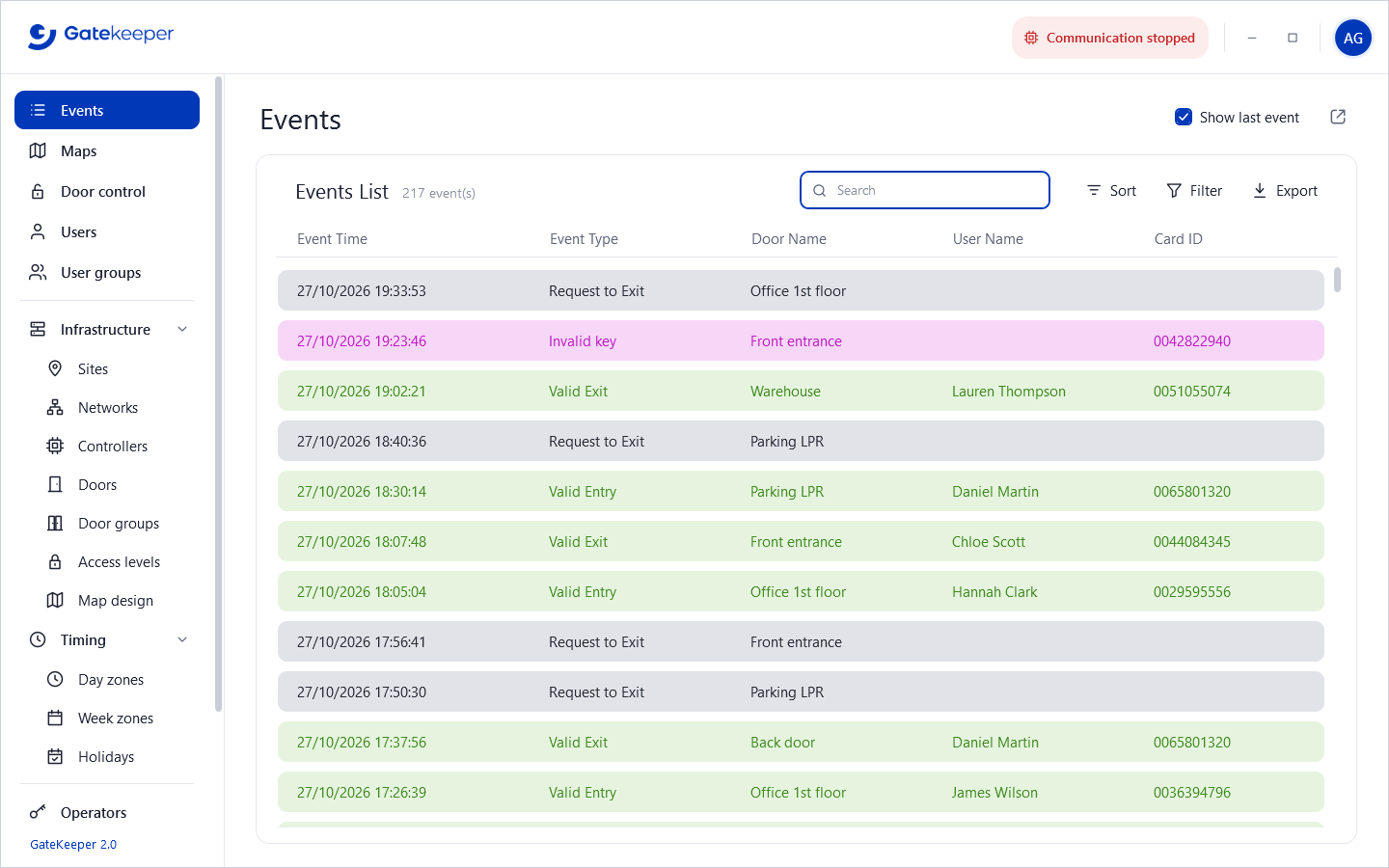
Top bar — drag it to move the window, double-click it to maximize. On the right: status indicators (only when something is wrong), minimize, maximize, and the circle with your initials.
Operator panel (click your initials): your name and role, Language, My account and password, Check for updates, Log out and Exit.
Menu — what you use every day is at the top:
- Events, Maps, Door control, Users, User groups
- Infrastructure (folded): Sites, Networks, Controllers, Doors, Door groups, Access levels, Map design
- Timing (folded): Day zones, Week zones, Holidays
- Operators, Settings, Backups, Reports
An operator sees only the pages that their privileges allow. Some pages (Events, Door control, Maps) have a ↗ button that opens them in a separate window, for example on a second screen.
Status indicators
A coloured button appears in the top bar only when something needs attention. Hover it for details, click it to go to the right page.
| Indicator | Meaning |
|---|---|
| N pending commands | Definitions (users, doors, zones…) not received yet by some controllers. They are sent as soon as the controller answers. Click to see the detail per controller. |
| N controllers not answering | These controllers do not answer the communication manager (power, cable, address…). Click to open Controllers, where each one has a green or red dot. |
| Communication stopped | The communication manager (gkComManager) does not answer: doors cannot be opened from GateKeeper and new events no longer arrive. See Troubleshooting. |
| Data server not answering | The workstation cannot reach the data server: changes cannot be saved. |
| Data server to update | The data server is older than this workstation. Update the server PC. |
| Backup failed | The last automatic backup failed. See Backups. |
First setup checklist
On a new installation, follow this order: each step uses what the previous ones created.
- Settings › Cards and readers: card number format and Wiegand format. Choose them before entering users.
- Networks: one per COM port or TCP/IP converter.
- Controllers: each controller with its address; its 4 doors are created with it. Remove the doors that are not used.
- Doors: unlock time, reader, door type, inputs… and door groups if useful.
- Day zones, week zones and holidays. A new database already has Always.
- Access levels: a week zone and doors. A new database already has Everywhere (all the doors, always).
- User groups, then users (by hand or imported from Excel).
- Operators: one account per person, with the right privileges.
- Settings › Backups: choose a backup folder, ideally on another disk.
Every change is sent to the controllers automatically; there is no “download” to do by hand in normal use.
5. Daily use
Events
The live list of what happens at the doors, newest first, refreshed every 2 seconds. The colour of a line tells its kind:
| Colour | Kind |
|---|---|
| Green | Valid entry or exit |
| Pink | Refused: invalid key, wrong time, wrong PIN, invalid door… |
| Grey | Request to exit (exit button) or automatic opening |
| Orange | Door left open |
| Red | Alarm: door forced, tamper, fire… |
- Search filters by any column; Sort chooses newest or oldest first; Filter shows or hides each kind; Export saves the list as a CSV file for Excel.
- Show last event keeps the newest event in view.
- Right-click an event to open the door definition or the user record, or to copy the card number.
- The number of events kept in the live list is set in Settings; older events stay in the database and appear in Reports.
A card refused as Invalid key is unknown to the controller. Copy its number from here, or use Read the card at a reader in the user record.
Door control
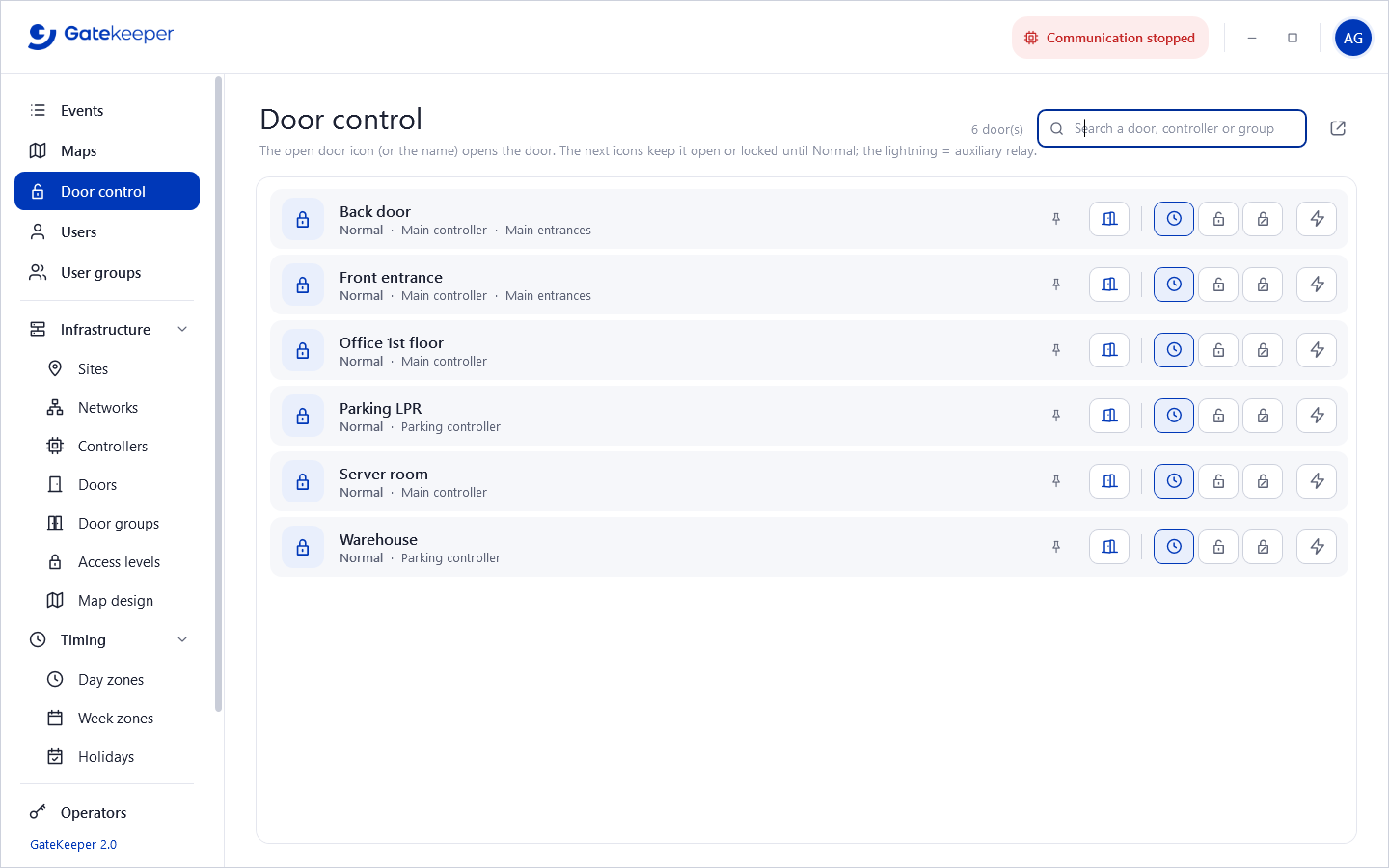
Operate the doors from the PC. The icon at the start of a line shows the state: normal, open constantly (green), locked constantly (red), or opening with a countdown.
| Action | Effect |
|---|---|
| Click the door name or the door icon | Opens the door for its unlock time (3 s if not set). |
| Clock icon — Normal | Back to normal operation: badges and time zones. |
| Open lock icon — Open constantly | Keeps the door open until it is set back to Normal (asks for confirmation). |
| Closed lock icon — Locked constantly | Keeps the door locked, badges refused, until Normal (asks for confirmation). |
| Lightning icon | Opens the auxiliary relay for 3 s. |
| Pin | Pins the door at the top of the list (for you only). Useful on large sites: pin the doors you open often. |
Search by door, controller or group. Viewing the page needs Door control › View; operating the doors needs Door control › Edit.
Maps
Plans of your floors or buildings with the doors placed on them (created in Map design). The colour of a door shows its state: blue = normal, green = open constantly, red = locked constantly, grey = controller not answering. Each event makes its door pulse.
- Click a door to open it; right-click for Back to normal, Keep open, Keep locked and the auxiliary relay.
- Mouse wheel = zoom, drag = move, Whole map fits the map to the window. Link icons (stairs, building entrance…) open another map.
Maps are an option of the license.
Users
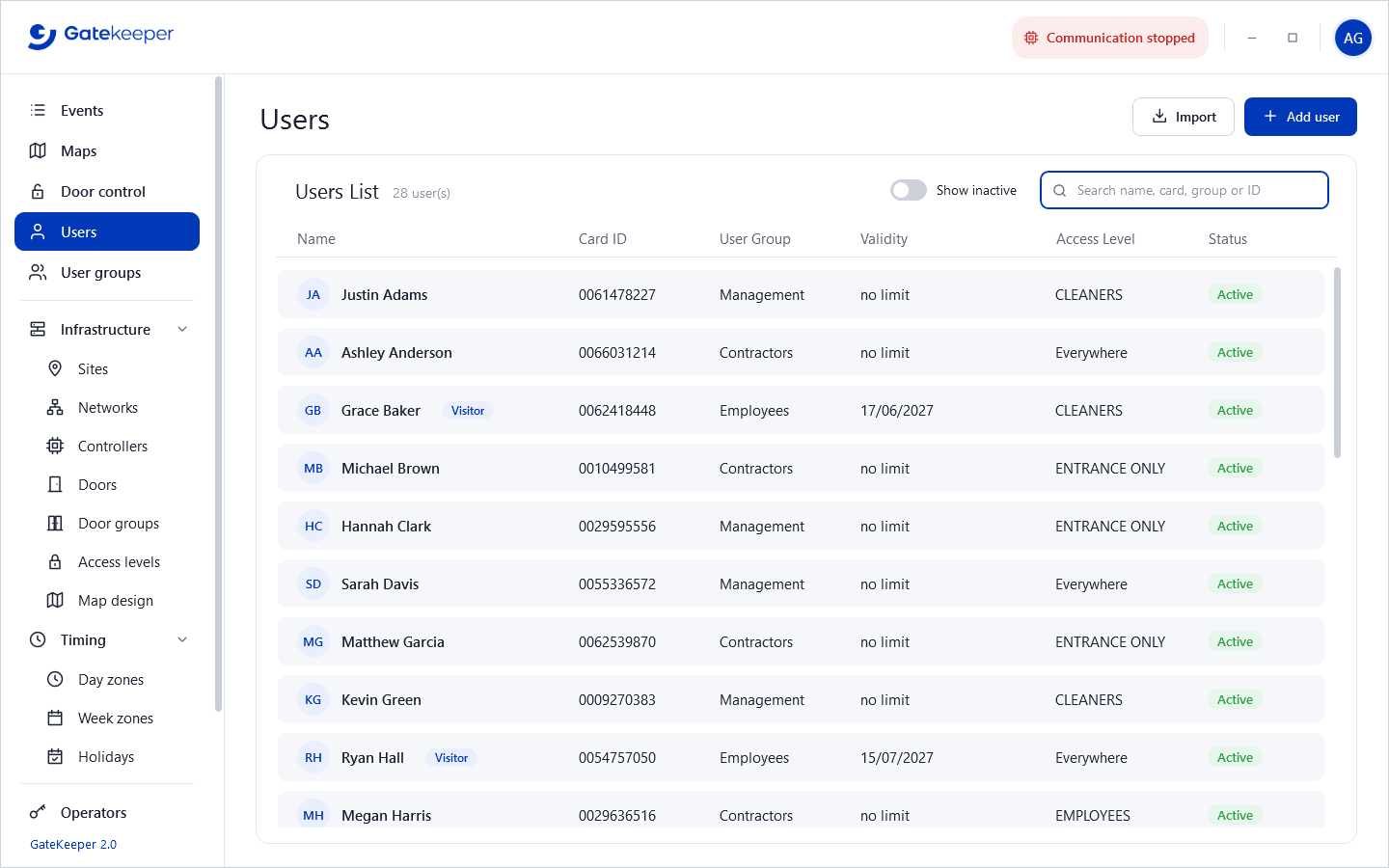
- Search name, card, group or ID; Show inactive also lists deactivated users.
- Double-click a user (or select it and press Enter) to open the record; Add user creates one; Import reads an Excel or CSV file (see Importing users).
- The Validity column shows the end date (“no limit” if none); Visitor marks visitors.
User record
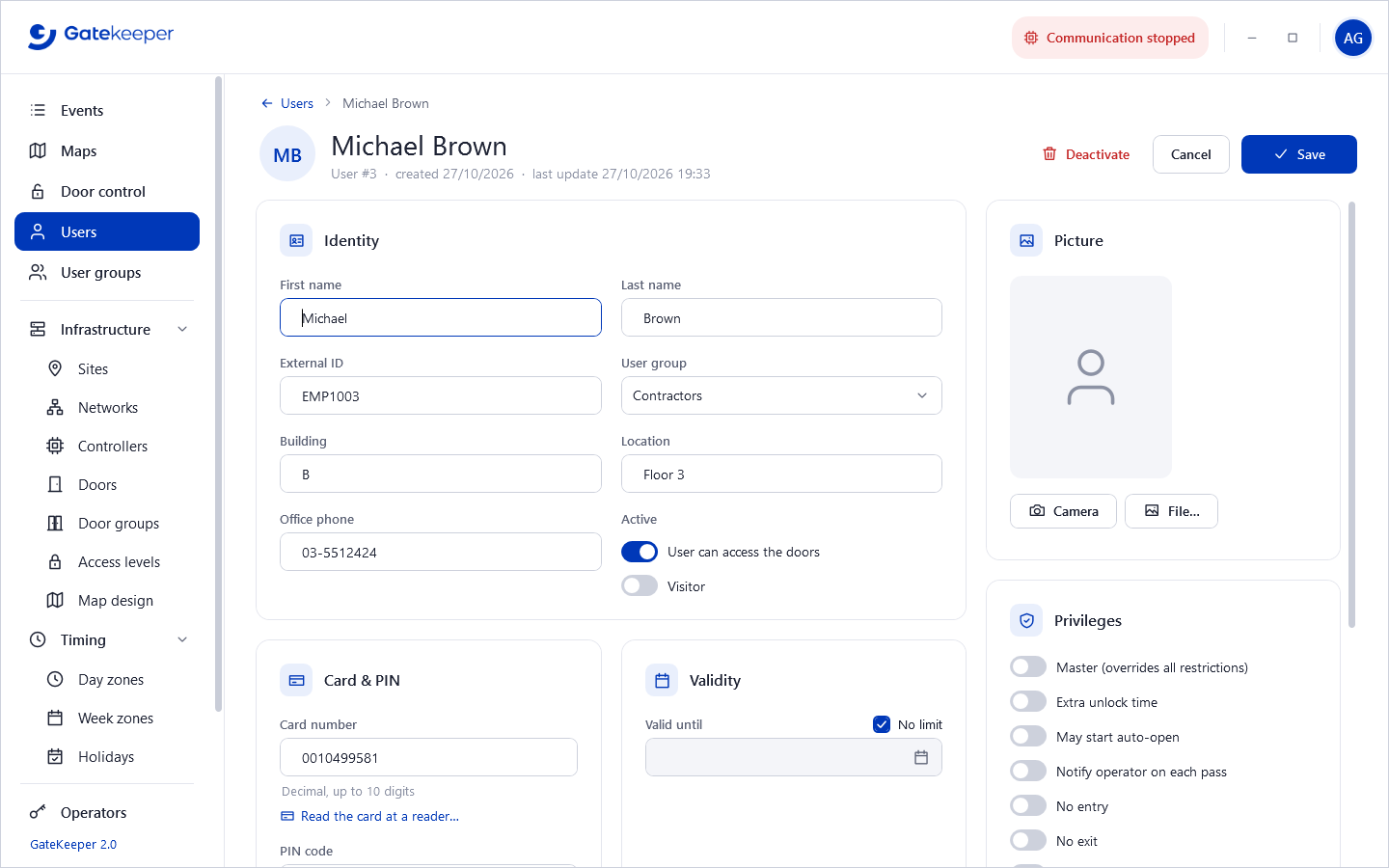
Identity
First name and last name (at least one), External ID (employee number, used by imports), user group, building, location, office phone.
- Active — User can access the doors. Turn it off to suspend a user without losing the record.
- Visitor — a visitor, not permanent staff: can be managed from the web access and is deactivated the day after the end date.
Card & PIN
Card number in the format chosen in Settings (hexadecimal up to 8 characters, decimal up to 10 digits, or facility 3 digits + card 5 digits). A card can belong to only one active user. PIN code: 1 to 8 digits, used at doors that ask for a PIN.
Read the card at a reader… — the easiest way to get the number of a new card: click it, pass the card at any reader, and its number appears in the Unknown cards list within a few seconds (the newest at the top, with the door, time and number of passes). Click the number to put it in the record. You can filter by door and by period (10 minutes, 1 hour, 24 hours). Cards of active users are not listed.
Validity
Valid until: the last day the user can open doors, or No limit. New users get the default validity of the settings.
Access
Access levels 1 and 2 (and 3 and 4 if the settings allow 4 levels per user). The user can open a door if any of their access levels gives it at that time.
Privileges
| Master | Overrides all restrictions (time zones, anti-passback…). |
| Extra unlock time | The door stays unlocked longer for this user (people with reduced mobility, deliveries…). |
| May start auto-open | At a door with an Open during week zone, the door opens automatically only after such a user has passed. |
| Notify operator on each pass | Each pass of this user is highlighted to the operators. |
| No entry / No exit | Refused at entrance readers / exit readers. |
| Limit number of entries | The user can enter only Entries left more times (0 to 255). |
Picture
File… loads a picture; Camera takes one with the webcam of the PC (place the face in the frame, Space or Enter to take it, then drag and zoom to adjust).
Deactivate
Deactivate stops the user from opening doors. The record and the history are kept, and it can be reactivated later. Users are never deleted, so that reports stay complete.
Importing users
Import on the Users page creates or updates many users at once from a file. It is the easiest way to load the staff of a company, or to keep GateKeeper in step with an HR file.
Example file to start from: users-import-example.xlsx (Excel) or users-import-example.csv. It holds the header line and three users; replace them with yours.
The file
- Excel .xlsx (the first sheet is read; Excel does not need to be installed on the PC) or .csv text file. An old
.xlsmust first be saved as.xlsxfrom Excel. - First line = the column names, then one user per line. Empty lines are skipped.
- Column names are those of the table below, in any order, upper or lower case. Other columns are ignored, so an HR export can be used as it is after renaming its columns. A
FromDatecolumn is ignored. - CSV: the separator (
;,,or tab) is found from the first line; UTF-8 or the Windows encoding (for example Hebrew text saved by an old Excel). Text containing the separator goes between double quotes. - The columns are the same as the old GKUserImporter, so existing files keep working.
Columns
| Column | Required | Content |
|---|---|---|
ExternalID | Yes | The key of the user (employee number…), shown as External ID in the user record. A user with this ID is updated, otherwise a new user is created. |
FirstName, LastName | Yes | First and last name. |
BadgeCode | Yes | Card number, written in the card number format of Settings › Cards and readers (decimal, hexadecimal or facility + card). It must not belong to another active user. |
Technology | 3 = Wiegand reader (default), 2 = magnetic card. | |
Active | 1 = active, 0 = deactivated. | |
AccessLevel | Name of access level 1, as in Access levels (upper or lower case). An unknown name creates the level, without time zone or doors: complete it afterwards. | |
Alevels2 | Number of access level 2 (the # of the level in Access levels); 0 = none. | |
Ugroup | Number of the user group (column Number of User groups, 1 to 255); 0 = none. | |
PINcode | 1 to 8 digits. | |
ToDate | Last day of validity: 2027-12-31, 31/12/2027, 31.12.2027, a date cell of Excel, or Now (today). | |
Building, OfficePhone, Location | Text. | |
Image | Picture file (JPEG, PNG…): a path relative to the folder of the imported file (for example photos\EMP2001.jpg) or a full path. A missing picture is reported; the user is imported anyway. | |
EntryCount | Entries left, 0 to 255 (with LimitEntryCount). | |
Master, ExtraUnlockTime, AutoOpenStart, NoEntryDoors, NoExitDoors, LimitEntryCount | The privileges of the user record, 1 = yes, 0 = no. |
New users and updates
- A new user gets the values of Settings › New users (access levels, validity) for the columns that are absent or empty.
- An update changes only the columns present and filled in the file: an empty cell keeps the current value.
- Each line is checked and saved as if typed in the user record, and the controllers receive the changes.
Importing
- Check the card number format in Settings, and the numbers of the user groups and access levels used in the file.
- On the Users page, click Import and choose the file. GateKeeper says how many users it holds and asks for confirmation.
- At the end it shows how many users were created and updated, and lists the refused lines with their line number and the reason (empty ExternalID, invalid card number, card already used, date not understood…). Correct those lines and import the file again: the users already imported are only updated.
Importing needs the Users › Add privilege to create users and Users › Edit to update them.
User groups
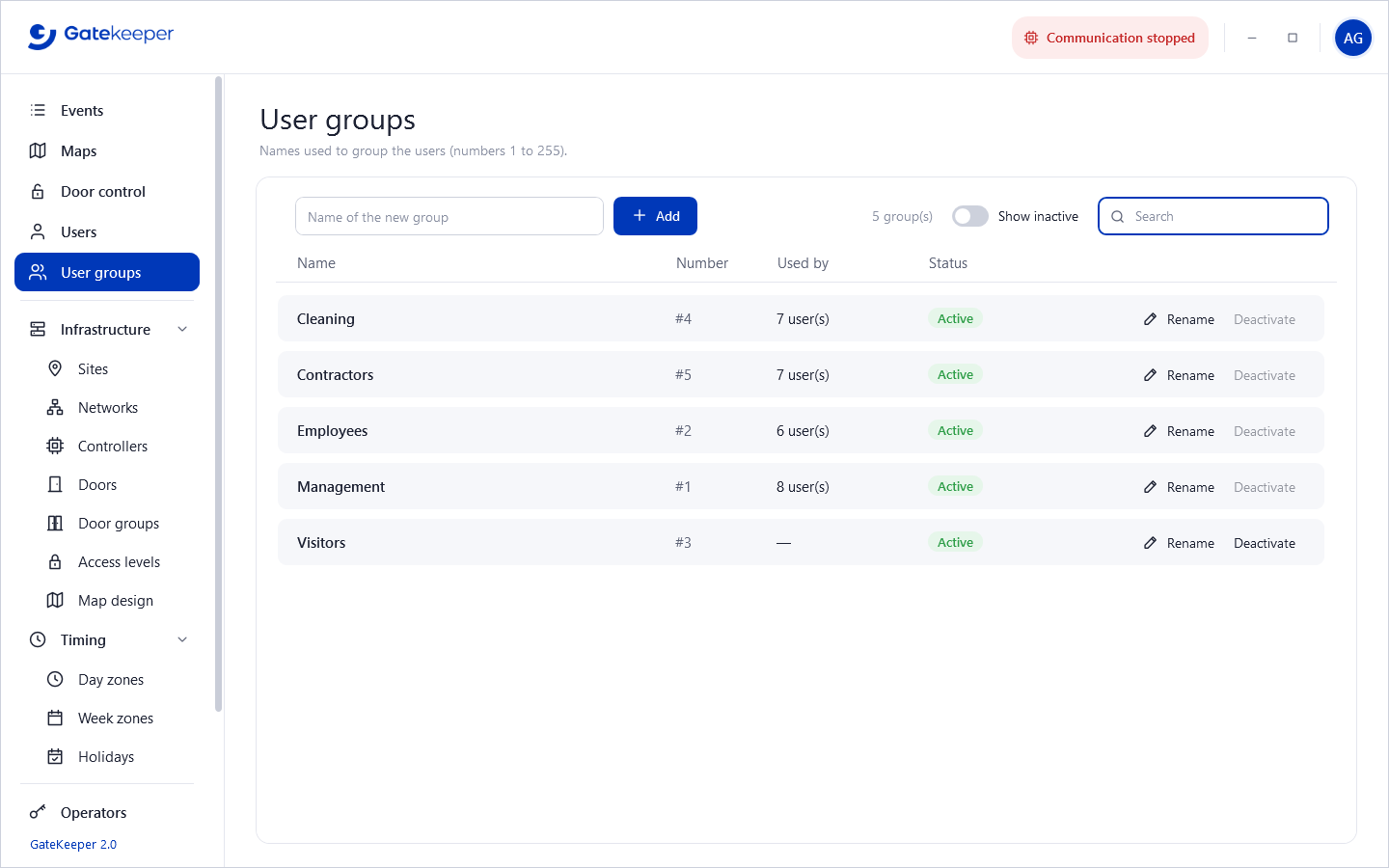
Type a name and click Add. Rename a group in its line (Enter to confirm, Esc to cancel). A group can be deactivated only when no active user is in it. Groups are numbered 1 to 255.
6. Infrastructure
These pages describe the hardware. They are usually set up once by the installer. Most of them show a list on the left and the selected item on the right; Save and Cancel are at the bottom of the detail.
Sites
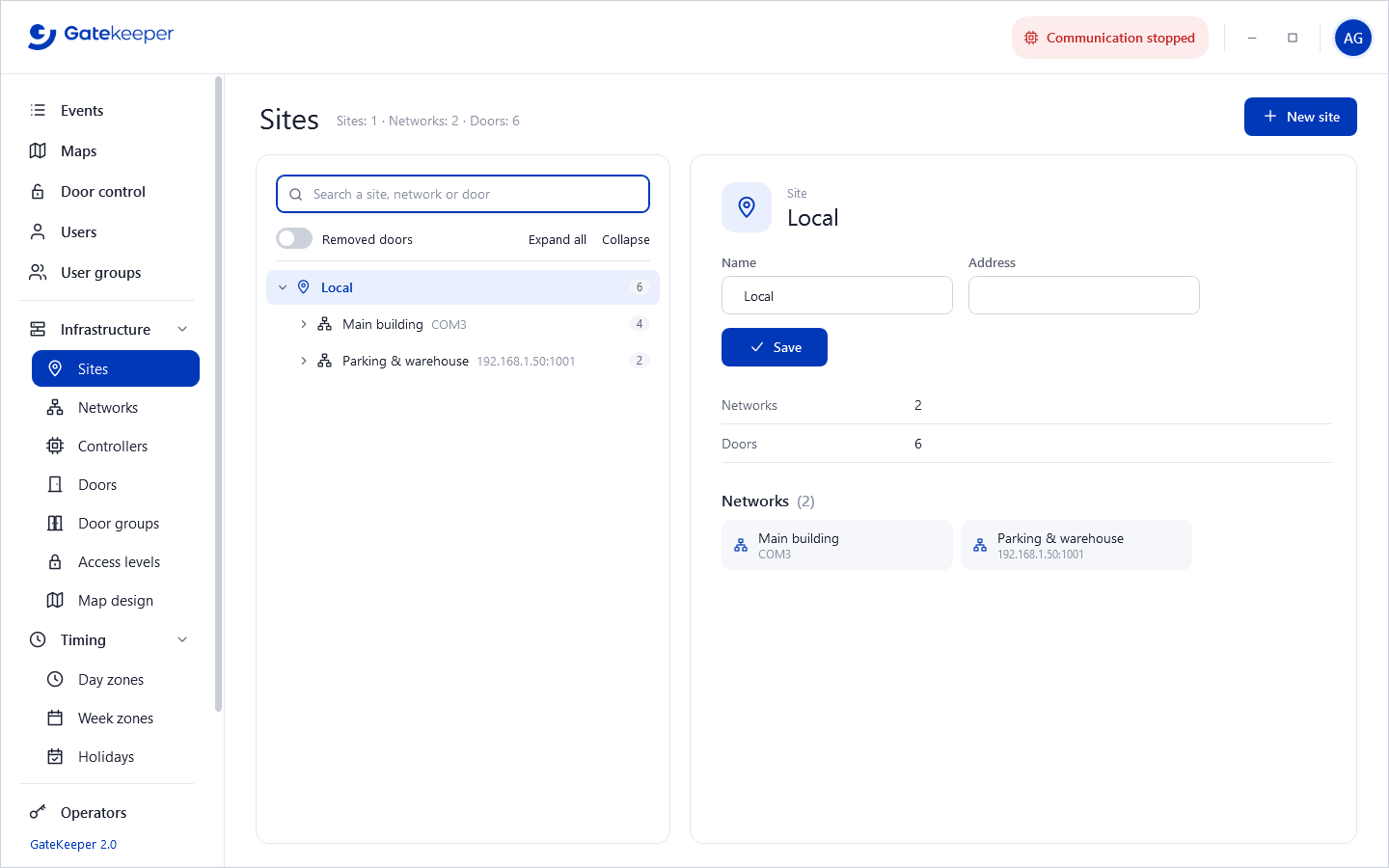
An overview of the whole installation as a tree, with search and Expand all / Collapse. Select an item to see its details. New site creates a site (name, address); a network is moved to another site from its detail (Move). A site can be deleted only when it is empty; the Local site cannot be deleted.
Networks
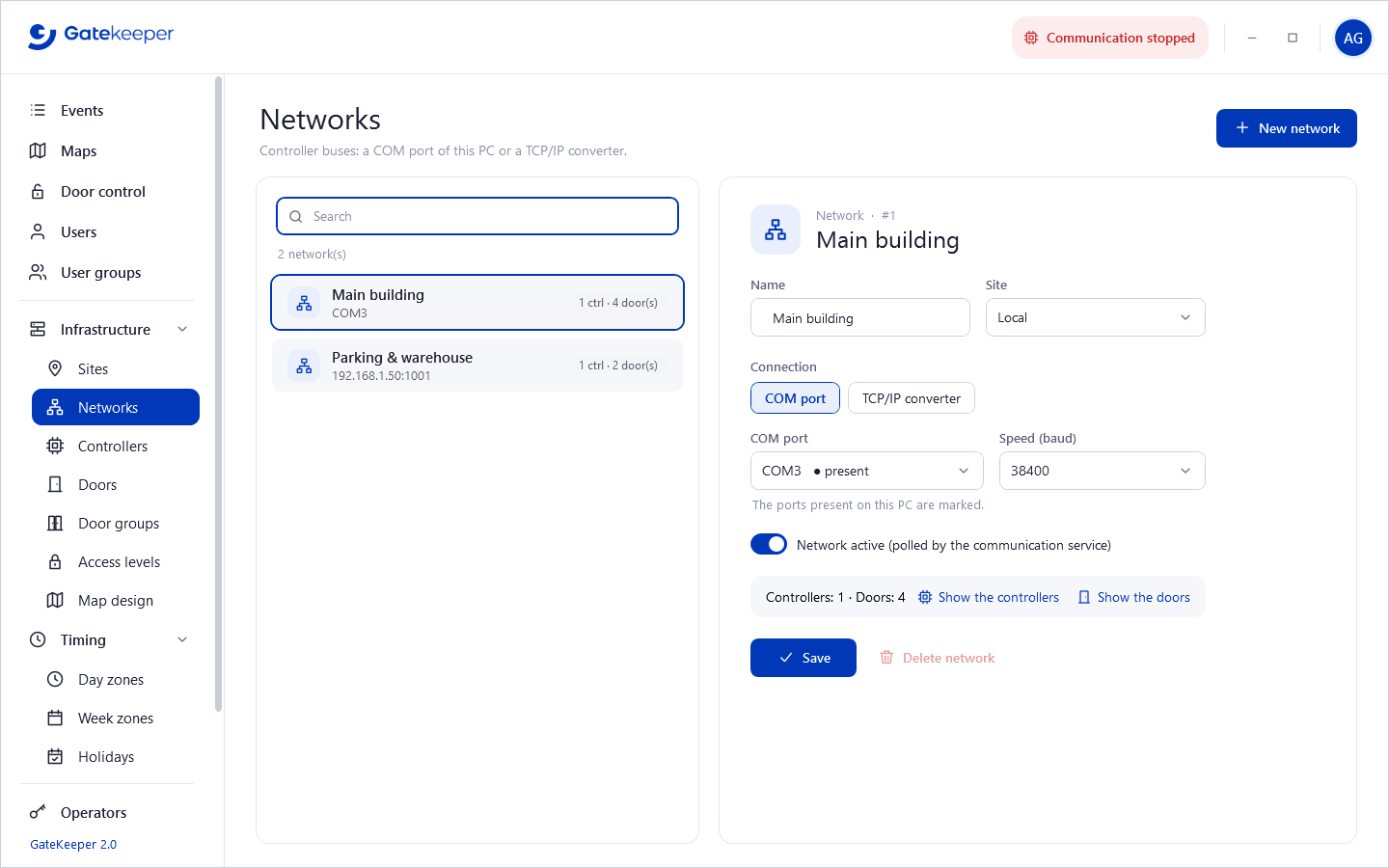
A network is a bus of controllers. For each one:
- Name and Site.
- Connection: COM port of the server PC (the ports present on the PC are marked ● present) and its speed, or TCP/IP converter with its IP address and TCP port.
- Network active (polled by the communication service): turn it off for a network that is not connected yet.
A COM port or an IP address:port can be used by only one network. Show the controllers and Show the doors open those pages filtered on this network. A network can be deleted only when it has no controllers.
Controllers
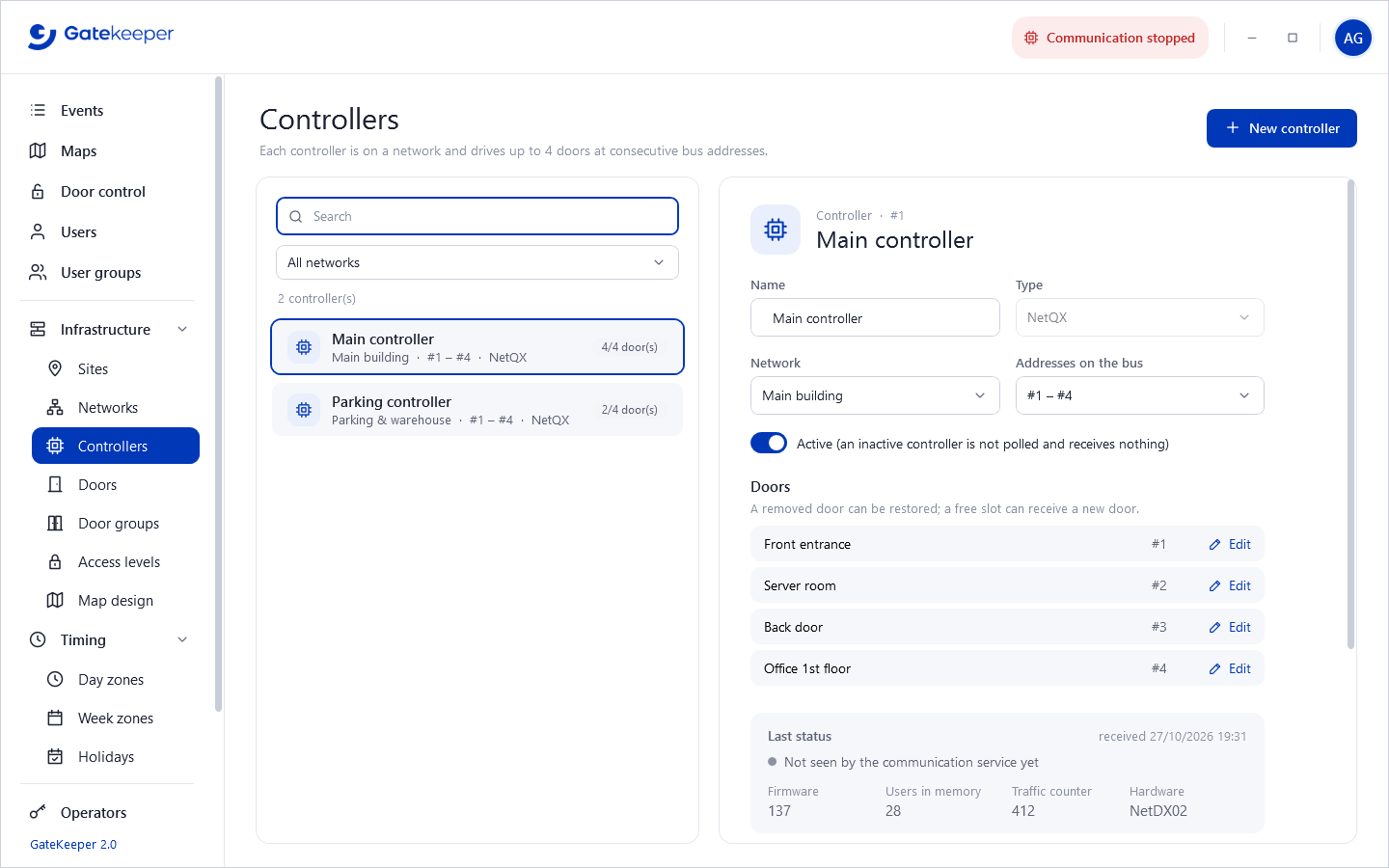
A controller is on a network and drives up to 4 doors at consecutive addresses: a controller at #5 – #8 has door 1 at address 5, door 2 at 6, and so on. The address range must start a block of 4 (1-4, 5-8, 9-12…); GateKeeper proposes the first free one and warns about overlaps.
- New controller: name, type, network, addresses. Its 4 doors are created with it; name them now or later, and remove the ones that are not used.
- The Doors list shows its 4 slots: Edit opens the door, a removed door can be restored, a free slot can receive a new door (Create the door).
- Changing the network or the addresses moves its doors with it.
- Active: an inactive controller is not polled and receives nothing.
- The status line shows Online since… or Not answering since…; Last status shows the firmware, the number of users in its memory, the traffic counter and the hardware it reports.
- Delete controller also removes its doors, permanently.
Sending to controllers
Every change you save (user, door, access level, zones, holidays) is sent automatically to the controllers concerned. A controller receives only the users that have rights on one of its doors. If a controller does not answer, the changes wait and the pending commands indicator counts them; they are sent as soon as it answers.
The Download box of a controller is for special cases (a controller replaced or reset):
- Tick what to send — Date and time, Doors, Time zones, Holidays, Access levels, Users — and click Send. The progress (waiting, sent, failed, time left) is shown; Cancel the sending stops it.
- Initialize clears the event history and the users in the controller's memory, then sends it everything. Use it for a new or replaced controller (a controller from another site would otherwise pour in its old events). GateKeeper offers it when a controller is created or reactivated. With many users it can take a while.
These actions need the Download privilege.
Doors
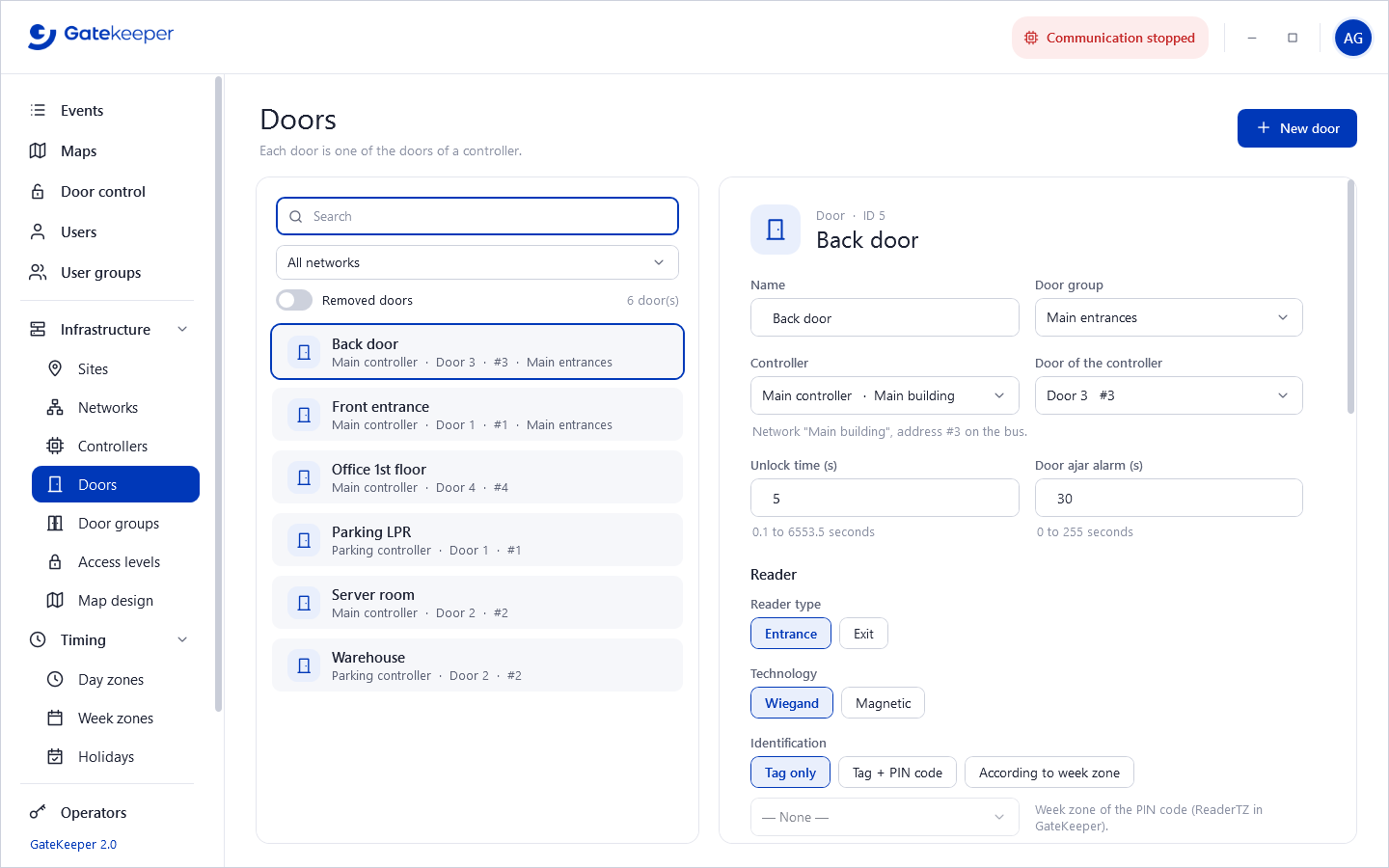
A door always belongs to a controller. New door takes the first free slot (if all controllers are full, create a controller first). Remove door can be undone with Restore (tick Removed doors to see them).
General
- Name, Door group, Controller and Door of the controller (1 to 4): the network and the address on the bus follow from them.
- Unlock time (s): how long the lock opens after a valid card (0.1 to 6553.5 s). New doors get the default of the settings.
- Door ajar alarm (s): after this time open, the event Door left open is raised (0 to 255 s).
Reader
- Reader type: Entrance or Exit. Technology: Wiegand or Magnetic.
- Identification: Tag only, Tag + PIN code, or According to week zone (PIN needed only during the chosen week zone).
- First digit and Digits: only with the Custom Wiegand format of the settings.
Door type
| Standard | A normal door. |
| Interlock | Airlock: this door does not open while the other door of the pair is open. |
| Parking | Counts the vehicles: Capacity and Current occupancy; Send the counters resets the counters of the door group. |
| 2 readers for 1 door | An entrance and an exit reader on the same door (also with interlock). |
| Lift | Floor control: Number of floors (0 to 64). |
| Safe | With a Deadband (s). |
Anti-passback
No APB, Soft APB (a second entry without exit is recorded but allowed) or Hard APB (refused); optionally Reset APB at midnight. Open only by a valid tag refuses the exit button until a valid card has been read.
Inputs / outputs
Door position (input 1) and RTE exit button (input 2), each NO or NC; control by input (road sensor); auxiliary relay as door alarm buzzer; dual presence; dead man switch; dual once per day; no forced door event.
Time zones
- Open during: the door is open during this week zone (for example working hours) and controlled by badge outside it.
- Controlled only during: the door is controlled during this week zone and disabled outside it.
- Reader time zone: week zone of the PIN code (with According to week zone).
Miscellaneous
Two man rule (with a delay), not counting door, don't show events, don't save events, and Area (neutral, entrance out → in, exit in → out) — the area the user is in after a valid pass, used by the Who is inside report.
Door groups
Same page as User groups, for doors. A door group helps to find doors and to add many doors to an access level at once.
Access levels
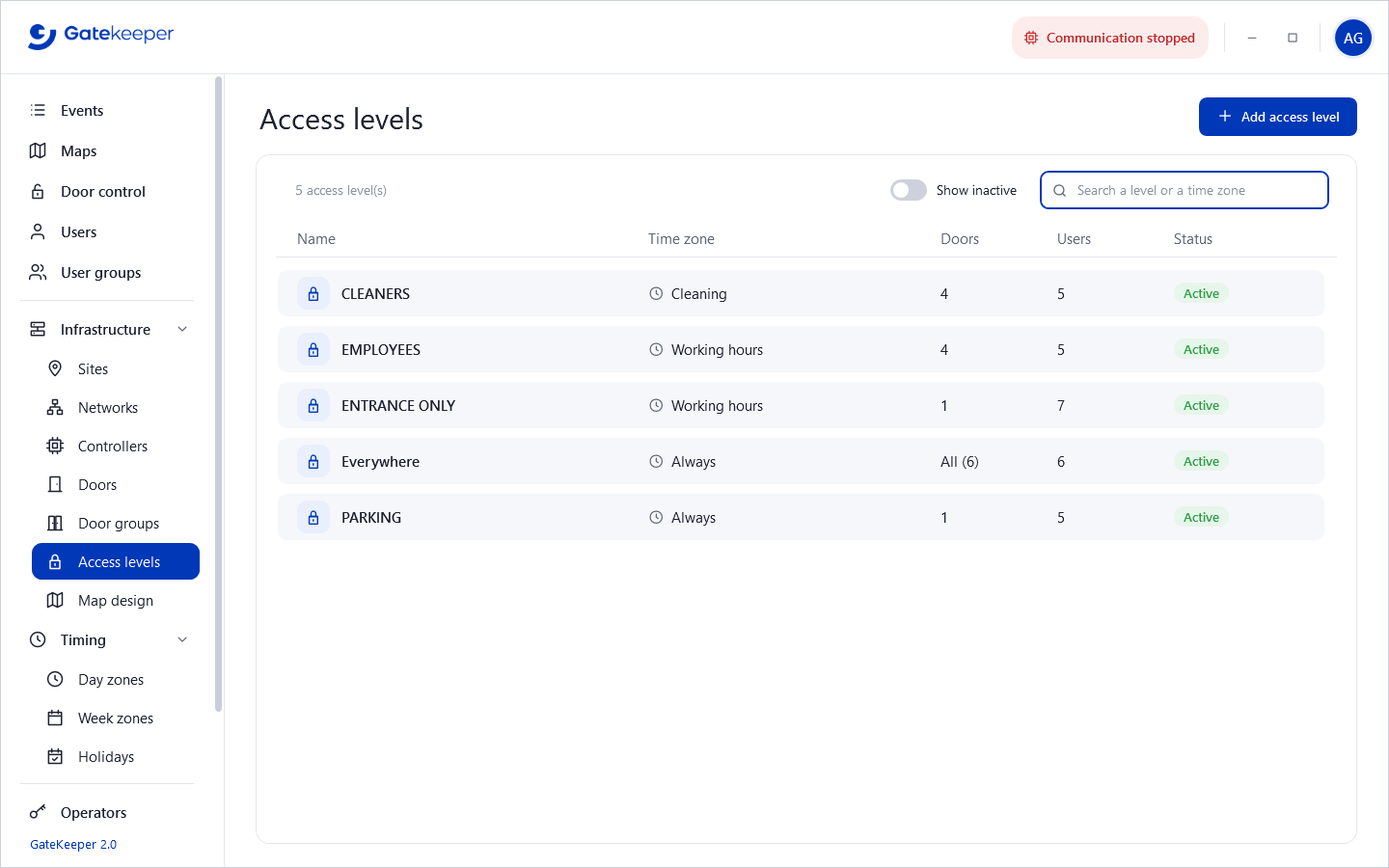
An access level says which doors can be opened when. Click Add access level or a level to edit it:
- Name and Time zone: the week zone during which the doors can be opened.
- Doors: tick the doors in the tree Site › Network › Controller › Door. Search, Only selected, Select all, Clear, and Add the doors of a door group help on large sites.
- All the doors: the level gets every door, and every door created later is added automatically.
Deactivating a level frees its number; it is refused while active users still have this level.
Map design
Create the maps shown in Maps:
- New map, give it a name and a site, and choose its Background… picture (PNG, JPEG, BMP or GIF: a floor plan, a site photo…).
- Drag the doors from the list onto the map (or double-click them).
- Optionally add links: icons that open another map (stairs, entrance of a building…).
- Save. Move up / Move down order the maps.
Changing the maps needs the Edit privilege on Sites, networks and controllers.
7. Timing
Day zones
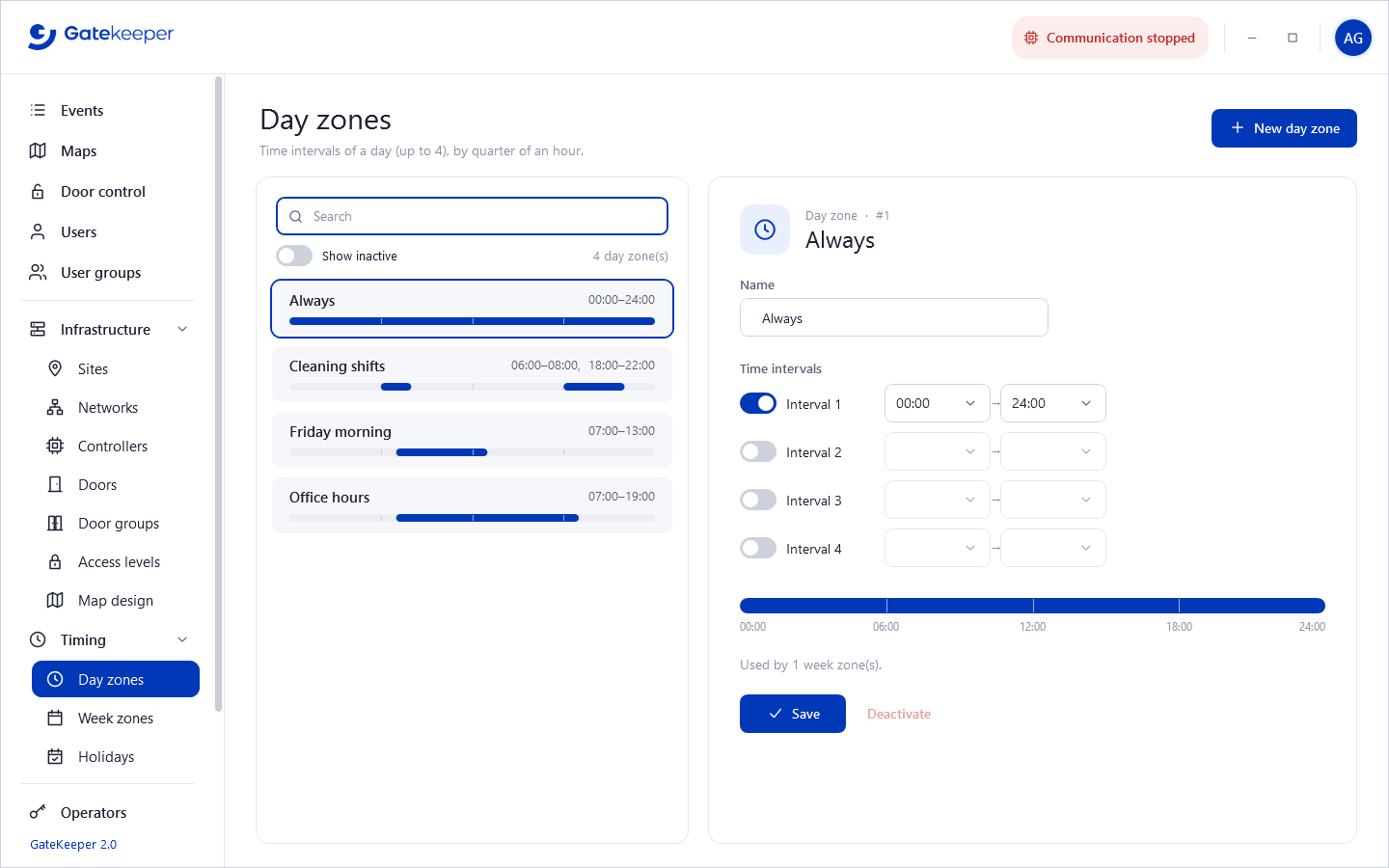
A day zone is up to 4 time intervals of a day, by quarter of an hour (the end can be 24:00). The bar shows the result. Intervals must not overlap. A new database has Always (00:00–24:00). A day zone used by an active week zone cannot be deactivated.
Week zones
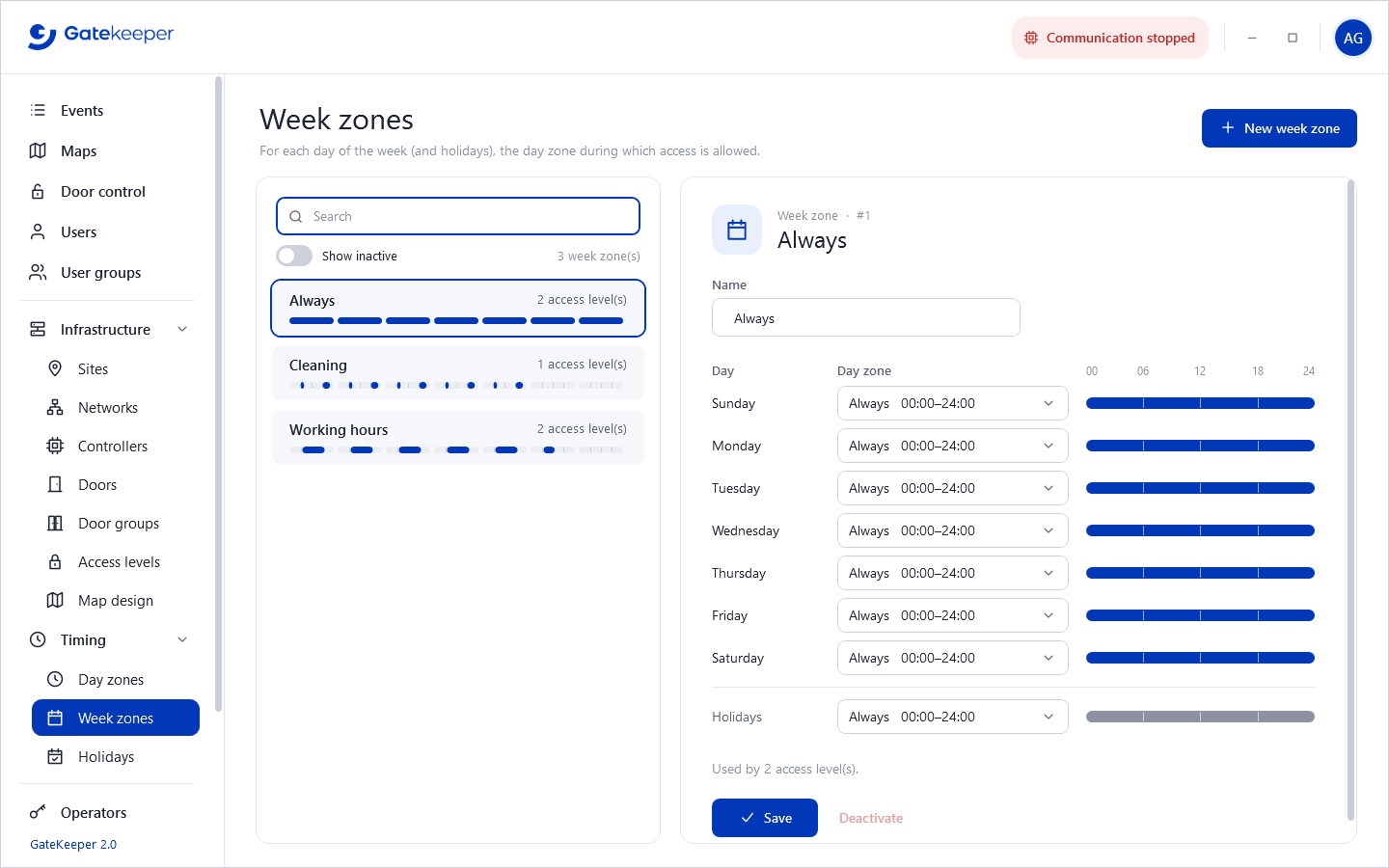
For each day of the week, and for holidays, choose the day zone during which access is allowed, or — No access —. A new database has Always. A week zone used by an active access level cannot be deactivated.
Example: “Office hours” = Monday–Friday 07:00–19:00, Saturday, Sunday and holidays No access.
Holidays
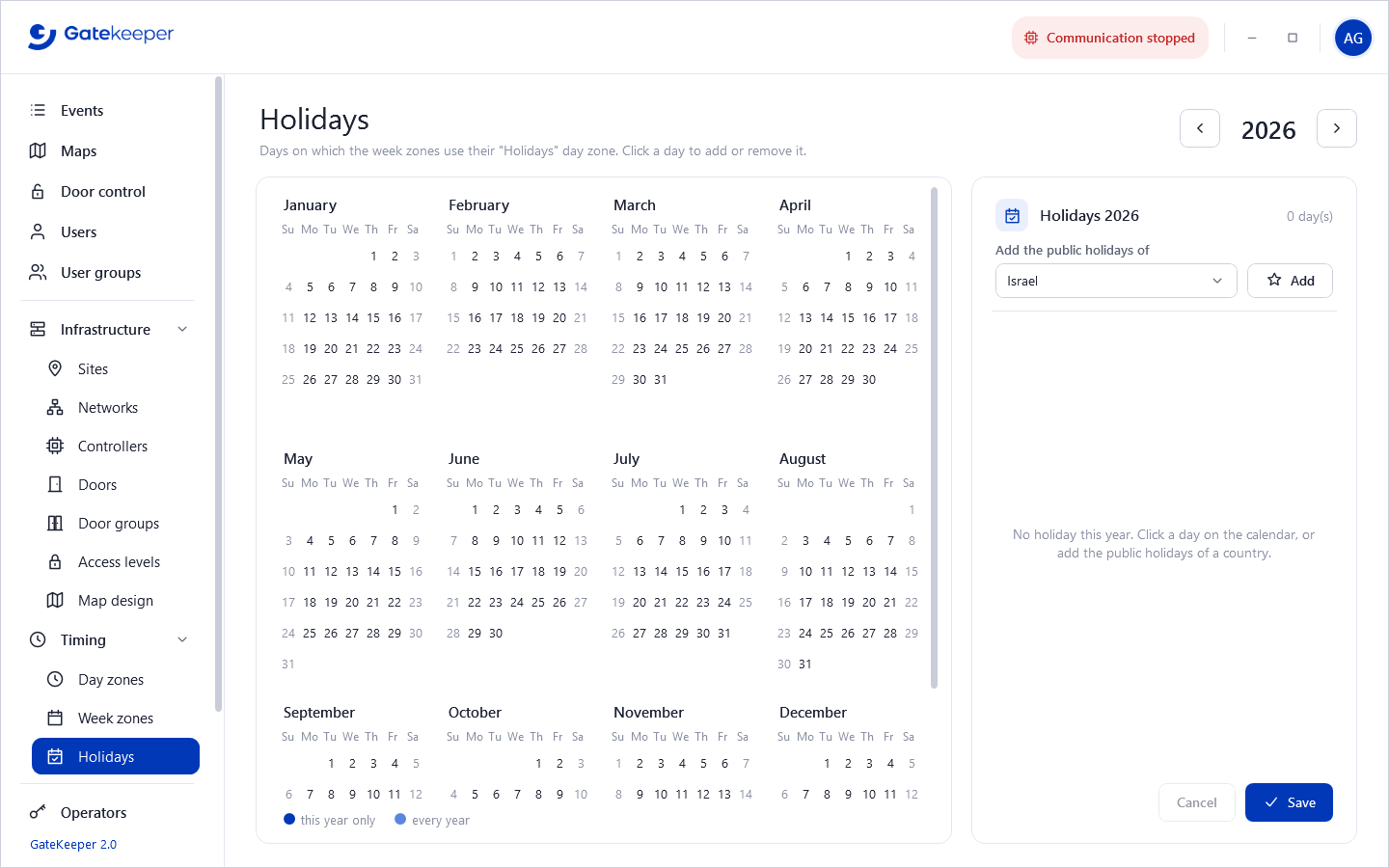
On holidays, the week zones use their Holidays day zone. Choose the year, then click a day of the calendar to add or remove it; give it a name in the list on the right.
- A holiday is either this year only (moving feasts) or every year (same day and month, ↻ button, shown in light blue).
- Add the public holidays of a country adds them in one click (Israel, France…).
- Click Save to keep the changes; GateKeeper asks before leaving a year with unsaved changes.
8. Administration
Operators and privileges
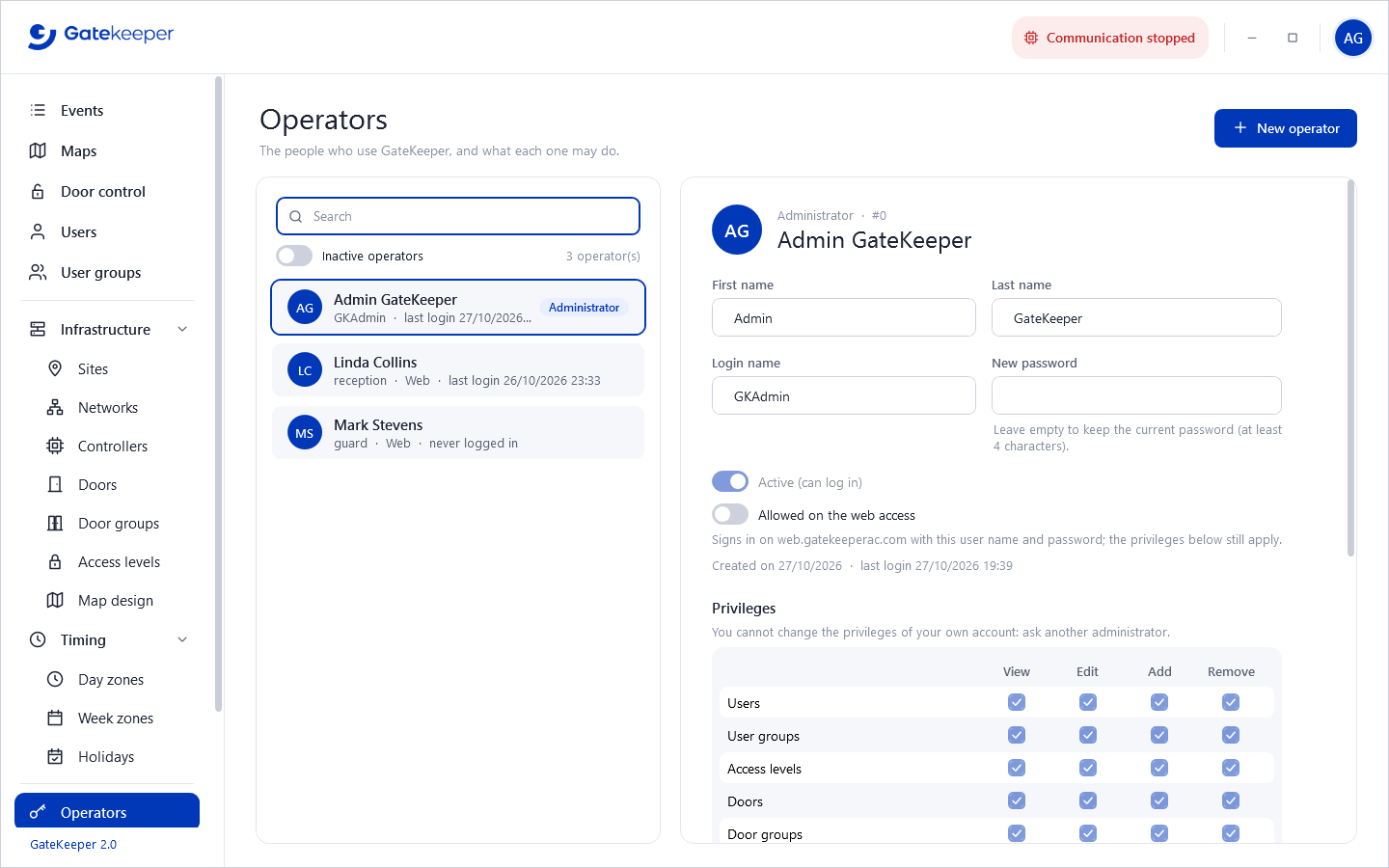
Operators are the people who use GateKeeper. For each one: first and last name, Login name (unique), Password (at least 4 characters; leave empty to keep the current one), Active (can log in), and Allowed on the web access.
Privileges
One line per area, with up to four rights: View, Edit, Add, Remove. Edit, Add and Remove include View; Add includes Edit. Shortcuts: Everything, View only, Nothing.
| Area | Controls |
|---|---|
| Users, User groups | The Users and User groups pages, the import. |
| Access levels, Doors, Door groups | Those pages. |
| Sites, networks and controllers | Sites, Networks, Controllers, Map design. |
| Day zones, Week zones, Holidays | The Timing pages. |
| Door control (open, lock) | View: see the Door control page; Edit: operate the doors. |
| Download | Sending to controllers, detail of pending commands. |
| Reports, Backup | Those pages (View). |
| Settings | View: see the settings; Edit: change them. |
| Operators | The Operators page. All the rights on Operators make an administrator. |
Rules:
- Only an administrator changes privileges; nobody changes their own privileges or deactivates themself.
- At least one active administrator always remains.
- An operator without Operators › View sees only their own account (operator panel › My account and password).
- Deactivate stops an operator from signing in; it can be reactivated.
Every sign-in, failed sign-in and change is recorded as an event with the operator's name (see the Operator actions option of the Events report).
Settings
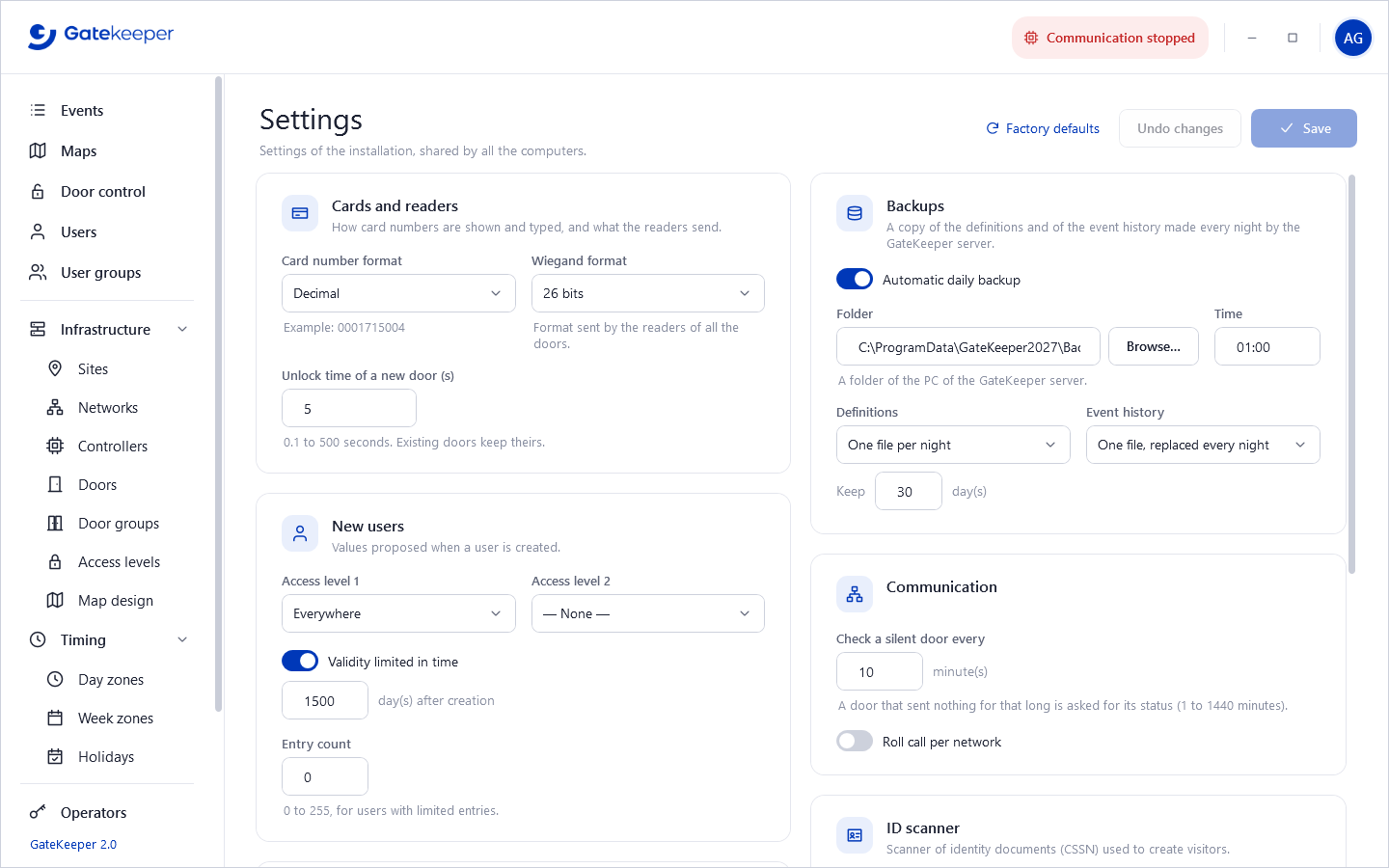
Settings of the installation, shared by all the computers. Save and Undo changes become active when something changed; Factory defaults fills the page with the default values (saved only with Save).
| Card | Settings |
|---|---|
| Cards and readers | Card number format: Hexadecimal, Decimal, or Decimal 24 bits (site + card), with an example. Wiegand format sent by the readers: Custom, 16, 26 or 32 bits. Unlock time of a new door. |
| New users | Access levels 1 and 2, validity (N days after creation, or no end), entry count proposed to new users. |
| General | Events in the live list (50 to 100,000); Access levels per user: 2 or 4 (4 needs controllers that support it). The language is chosen on each computer, in the operator panel. |
| Backups | Automatic daily backup: folder on the server PC, time, and for the definitions and the event history: one file replaced every night, or one file per night kept N days. |
| Communication | Check a silent door every N minutes (a door that sent nothing for that long is asked for its status); roll call per network. |
| ID scanner | Identity document scanner (CSSN) used to create visitors, and the region of the documents. |
| Web access | See Web access. Only an administrator can change it. |
Backups
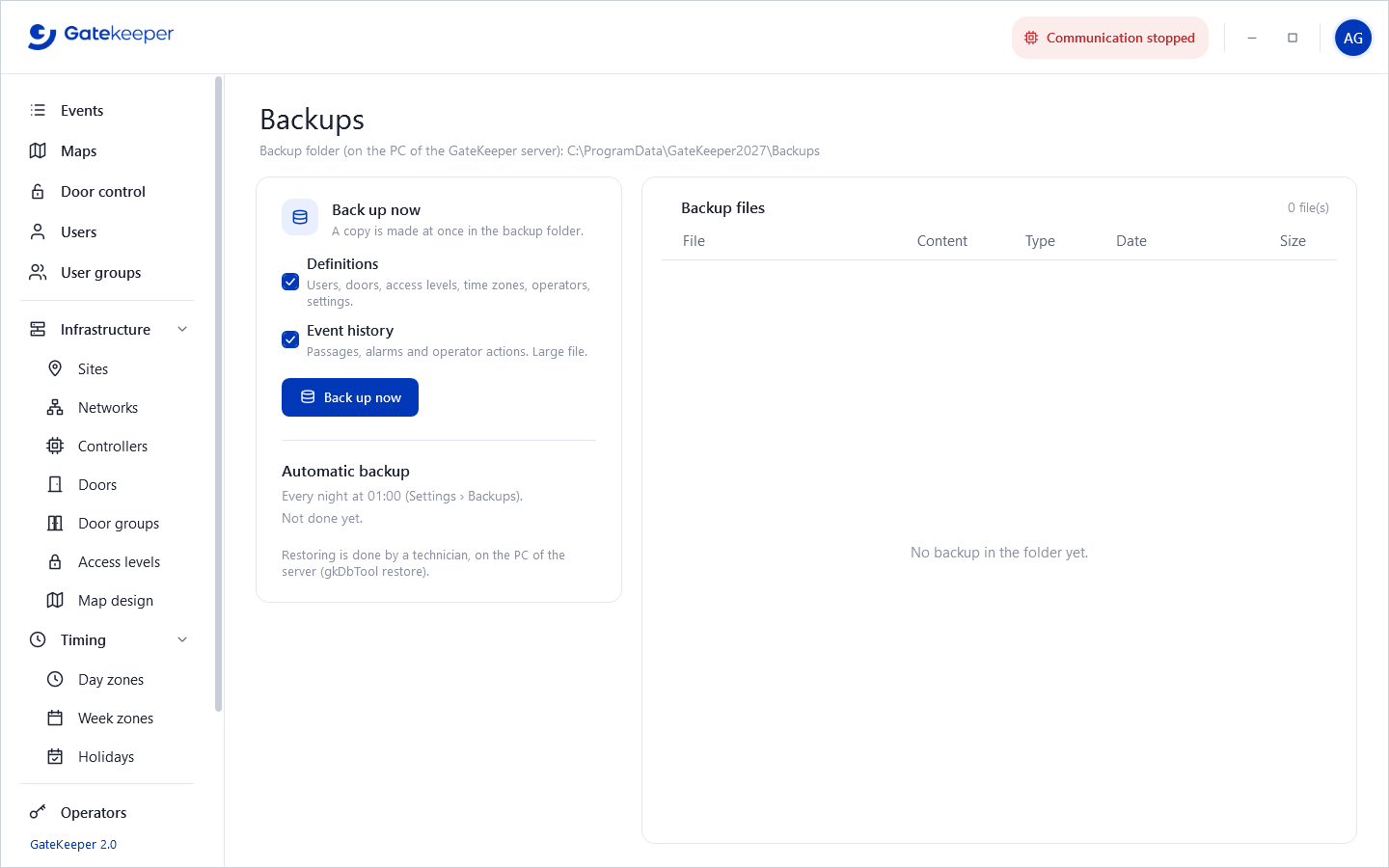
GateKeeper has two databases, backed up separately:
- Definitions: users, doors, access levels, time zones, operators, settings. Small, essential.
- Event history: passes, alarms and operator actions. Can be large.
Back up now makes a copy at once in the backup folder (on the server PC). The Automatic backup box shows the schedule (set in Settings › Backups) and the result of the last one. The list shows the files of the folder, automatic or manual, with date and size.
Put the backup folder on another disk, or copy it regularly elsewhere: a backup on the same disk does not protect against a disk failure. To restore a backup, contact your installer.
Reports
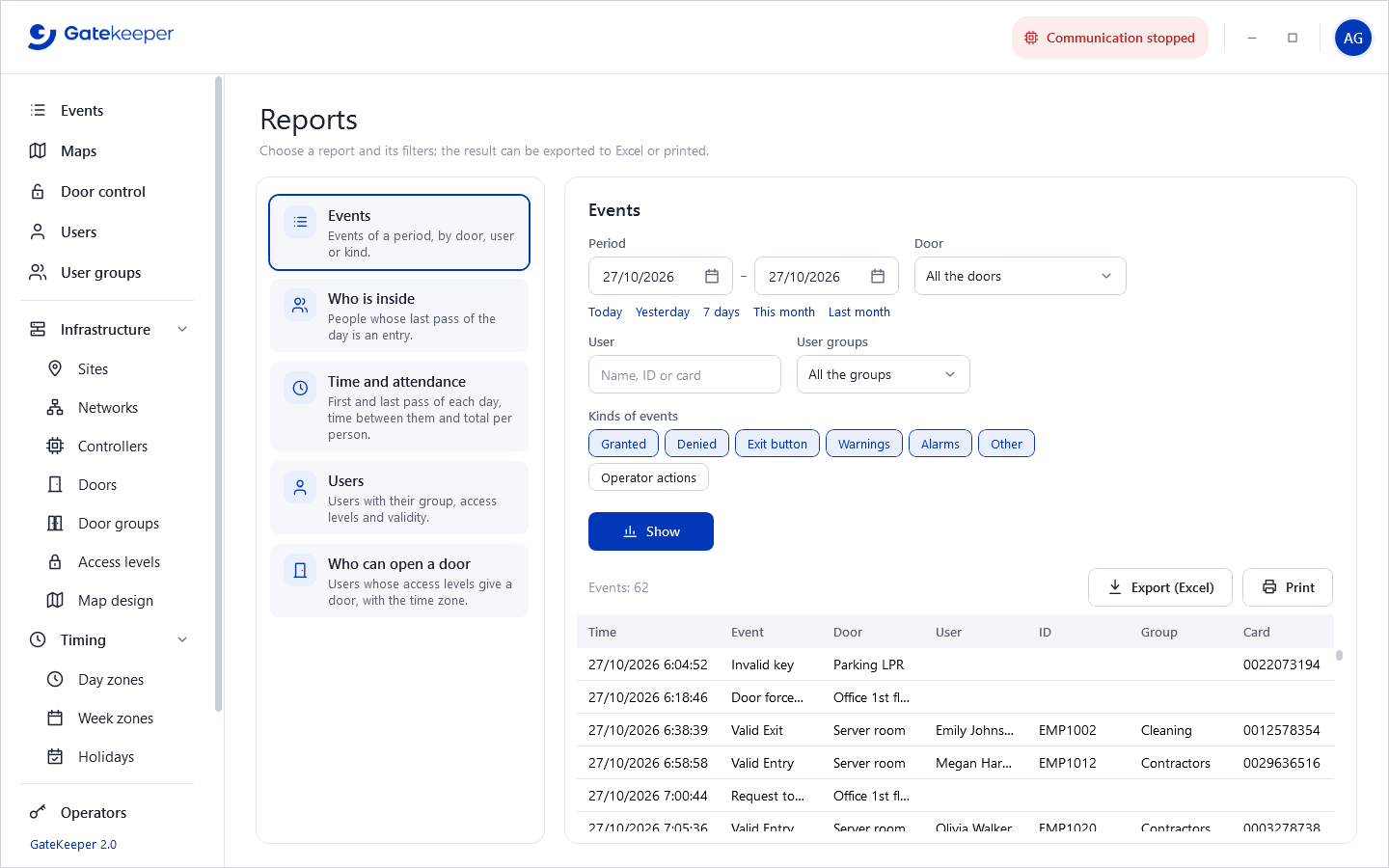
Choose a report, set its filters and click Show. The result can be exported with Export (Excel) (CSV file) or printed (Print, landscape when there are many columns). At most 20,000 lines are shown: narrow the period or the filters if needed.
| Report | Shows | Filters |
|---|---|---|
| Events | Events of a period. | Period (Today, Yesterday, 7 days, This month, Last month), door, user (name, ID or card), user group, kinds (Granted, Denied, Exit button, Warnings, Alarms, Other) and Operator actions. |
| Who is inside | People whose last valid pass of the day is an entry, with the time and the door. Useful as an evacuation list. | Day, network, group, name. |
| Time and attendance | For each person and day: first and last valid pass, number of passes, time between them; total per person. | Period (last month by default), group, user. |
| Users | Users with group, access levels, validity, active. | Group, access level, status (active, inactive, all), validity (valid today, expired, ends within 30 days). |
| Who can open a door | Users whose access levels give a door, with the levels and the time zone. | Door, group, status. |
9. Web access
With the Web access option of the license, allowed operators can manage visitors from any browser or phone, from outside the site, at web.gatekeeperac.com. The server PC connects to the GateKeeper web relay itself: there is no port to open in the router of the site.
- In Operators, tick Allowed on the web access for each operator who may use it. They sign in with the same login name and password; their privileges still apply.
- In Settings › Web access, choose the Users shown on the web: Visitors only (the permanent staff cannot be seen or changed from outside) or All the users.
- Choose the Access levels given from the web: an access level outside this list is neither given nor taken away from the web.
Visitors created from the web are marked Visitor and are deactivated the day after their end date. The number of web connections at the same time is limited by the license.
10. Troubleshooting
“The server does not answer” at sign-in
- On the server PC: start GateKeeper data server from the Start menu, then check its icon next to the clock.
- On a workstation: check that the server PC is on and reachable, and that port 8750 (TCP and UDP) is open in its firewall. Use Change to type the server name or IP address.
“Communication stopped”
The communication manager is not running. On the server PC, quit the data server (its icon › Quit) and start it again from the Start menu: it starts the communication manager. The doors keep working meanwhile, and the events waiting in the controllers arrive afterwards.
A controller is not answering
Check its power and its bus cable, the network settings (COM port or IP address of the converter) and its address (#1 – #4, #5 – #8…). Check that the controller and its network are Active. Changes made meanwhile are kept as pending commands and sent when it answers.
A card is refused
- Invalid key: the card is unknown. Check the card number and the card format in Settings; use Read the card at a reader.
- Invalid door: the user is known but none of their access levels gives this door.
- Invalid time: the door is in an access level of the user, but not at this time (check the week zone and the holidays).
- Also check that the user is active, still valid, and that the controller has no pending commands.
Forgotten administrator password
Another administrator can set a new password in Operators. If there is none, contact your installer.
Logs
The data server writes one log file per day in C:\ProgramData\GateKeeper2027\Logs\ (30 days kept). Its icon menu › Open the logs opens the folder.
11. Reference
Files and folders
| Path | Content |
|---|---|
C:\Program Files\GateKeeper2027\ | The programs and their .exe.config files. |
C:\ProgramData\GateKeeper2027\gatekeeper.db | Definitions (server PC). Encrypted. |
C:\ProgramData\GateKeeper2027\gatekeeper.events.db | Event history (server PC). Encrypted. |
C:\ProgramData\GateKeeper2027\Logs\ | Logs of the data server. |
C:\ProgramData\GateKeeper2027\Backups\ | Default backup folder. |
%LocalAppData%\GateKeeper2027\user.settings | Choices of each Windows user on each PC: language, server, menu groups open or closed. |
Command line of GateKeeper 2027
| Argument | Effect |
|---|---|
/lang:en · /lang:fr · /lang:he | Language of the interface. |
/server:name | Data server to use (computer name or address). |
/us:<user> /pw:<password> | Automatic sign-in (for example a security desk started with Windows). |
/page:events, users, doorcontrol, maps, reports… | First page shown after sign-in. |
Configuration files
GateKeeper2027.exe.config (next to the program):
| Key | Effect |
|---|---|
DataServer | Data server name or address (empty = this PC). The choice made on the sign-in screen has priority. |
DefaultUserName | Name proposed on the sign-in screen. |
DefaultPassword | With DefaultUserName: automatic sign-in at start. |
Language | Language until a choice is made on this PC (en, fr, he). |
gkDataServer.exe.config (server PC): DatabasePath (empty = default), Url (default http://+:8750/), SessionHours (a session without activity for that many hours is closed).
A quick check that the server answers: open http://<server>:8750/version in a browser.
GateKeeper 2027 · User manual · Securysoft